
For years, most people have used ChatGPT in one basic way.
You ask it a question.
ChatGPT gives you an answer.
Maybe you ask it to write an email, explain a confusing letter, plan a vacation, create a recipe, or help you think through a difficult decision.
That alone can be incredibly useful.
But ChatGPT is beginning to do something much bigger.
Instead of answering questions one at a time, ChatGPT can now help you complete an entire project. It can gather information from your files and connected apps, develop a plan, work through multiple steps, and create something you can actually use.
That might be a polished document, presentation, spreadsheet, report, website, project tracker, or even a personal dashboard that shows you what needs your attention.
This new way of using ChatGPT is called ChatGPT Work.
And it may completely change what you think ChatGPT is capable of doing.
What Is ChatGPT Work?
ChatGPT Work is a mode inside ChatGPT designed to help you move from an idea or goal to finished work.
(If you’re brand new to ChatGPT itself and want the basics first, start with my How to Use ChatGPT tutorial.)
In regular ChatGPT, you might ask:
“Can you help me compare these three contractor estimates?”
ChatGPT would probably give you suggestions for comparing them.
In ChatGPT Work, you could upload the estimates and say:
“Read these three contractor estimates. Compare the prices, services, warranties, exclusions, and payment terms. Create a spreadsheet showing the differences and prepare a list of questions I should ask each contractor.”
ChatGPT could then read the files, decide how to organize the information, create the comparison, and give you the finished spreadsheet to review.
The simplest way to understand the difference is this:
Regular ChatGPT gives you an answer. ChatGPT Work helps you produce a finished result.
ChatGPT Work can use your files, connected apps, approved information, research, and instructions to complete a more involved assignment.
Depending on your device, plan, permissions, and connected tools, that finished result might be:
- A document.
- A presentation.
- A spreadsheet.
- A report.
- A research summary.
- A website.
- An interactive dashboard.
- A project tracker.
- A calendar or timeline.
- A recurring briefing.
- Another customized tool designed around your needs.
ChatGPT Work can also continue through several steps without requiring you to give it a separate prompt for each one.
That makes it feel less like chatting with an AI and more like delegating an assignment to a capable assistant.
Is ChatGPT Work OpenAI’s Answer to Claude Cowork?
In many ways, yes.
Claude is the AI assistant created by Anthropic, one of OpenAI’s major competitors. Claude Cowork expanded the idea of what an AI chatbot could do by allowing people to give Claude larger assignments involving their files and other information.
Instead of only producing a response, Claude Cowork could work through a project and produce a finished result.
Now ChatGPT is offering its own working environment through ChatGPT Work.
If you have heard people talking about Claude Cowork but have been hesitant to try another AI platform, you may be in luck.
You may not have to leave ChatGPT to experience this new way of working with AI.
If you are already comfortable with ChatGPT — or loyal to it — ChatGPT Work allows you to explore many of these advanced capabilities inside the familiar ChatGPT environment.
The competition between ChatGPT and Claude is no longer only about which chatbot writes better answers.
The bigger question is becoming:
Which AI can best understand what you need, work with your information, and help you complete the assignment?
We will explore the differences between ChatGPT Work and Claude Cowork more closely in a separate comparison. For now, the important thing to understand is that ChatGPT is no longer limited to answering one prompt at a time.
What Can ChatGPT Work Do?
ChatGPT Work brings several capabilities together in one working environment.
Depending on what is available and connected to your account, ChatGPT Work may be able to:
- Read and compare multiple files.
- Conduct current online research.
- Work with documents, spreadsheets, presentations, PDFs, and images.
- Create polished, downloadable files.
- Build interactive websites and web-based tools.
- Create dashboards, calendars, trackers, and reports.
- Use information from connected apps and services.
- Search your approved email, calendar, messages, and cloud files.
- Develop a plan before beginning a complicated assignment.
- Work through several related steps.
- Ask questions when it needs clarification.
- Pause when your judgment or approval is required.
- Allow you to redirect the work while it is underway.
- Schedule an assignment to happen later.
- Repeat certain work on a schedule.
- Monitor for meaningful changes and notify you.
- Divide a complicated project into smaller connected steps.
You do not need to use all these capabilities at once.
For your first project, you might upload a few files and ask ChatGPT to organize them into a polished document.
As you become more comfortable, you can explore connected apps, dashboards, scheduled work, and more involved projects.
ChatGPT Work Can Build Your Personal Command Center
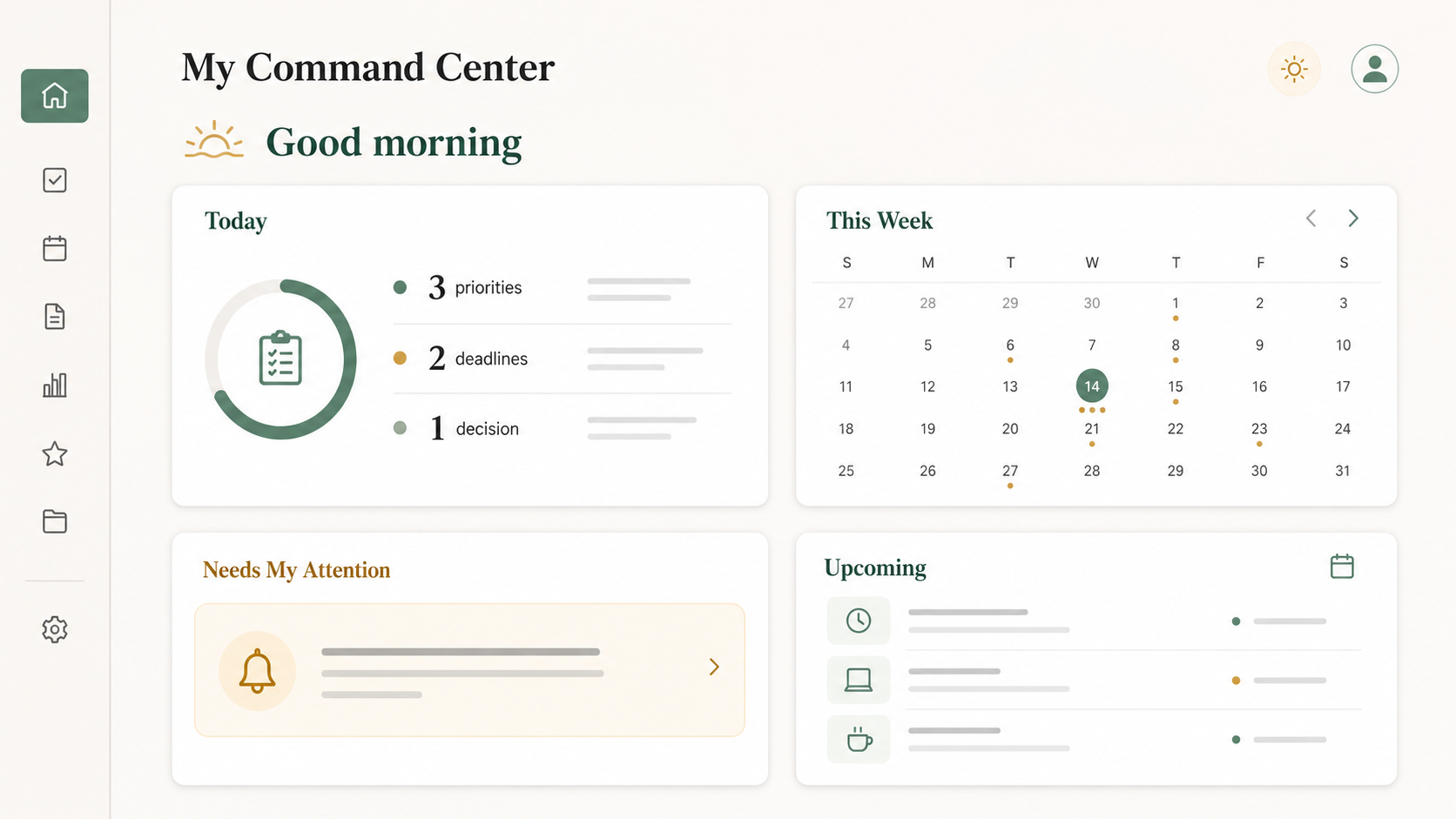
One of the most exciting uses of ChatGPT Work is its ability to create a personal dashboard.
A personal dashboard is a customized, interactive command center that brings important information into one organized place.
Imagine opening one screen and seeing:
- The appointments on your calendar.
- Important emails that need a response.
- Tasks that are approaching their deadlines.
- Files that were recently added or changed.
- Bills or payments that are coming due.
- Decisions you need to make.
- Conflicts or problems requiring your attention.
- Your most important priorities for the day or week.
Instead of opening your email, calendar, task list, cloud storage, spreadsheets, and several other apps to figure out what needs your attention, ChatGPT Work may be able to gather that information and organize it for you.
You might ask:
“Create a personal dashboard that uses my calendar, email, files, and task list. Show me what needs my attention today, which deadlines are approaching, which messages require a response, and whether I have any scheduling conflicts.”
ChatGPT can then help design an interactive dashboard around those needs.
You do not need to know how to build a website or write computer code.
You describe what you want the dashboard to contain, give ChatGPT the appropriate information and permissions, and work with it to refine the result.
A Dashboard You Can Actually Use
This is not limited to creating a pretty page that you look at once and forget.
ChatGPT’s Sites feature can turn your ideas, plans, and information into an interactive website or web app. OpenAI says these Sites can include dashboards, project trackers, calendars, prototypes, and reports — and can be kept current as information changes. OpenAI’s ChatGPT Work overview
Your dashboard could include buttons, checklists, charts, categories, progress indicators, search tools, or other interactive features.
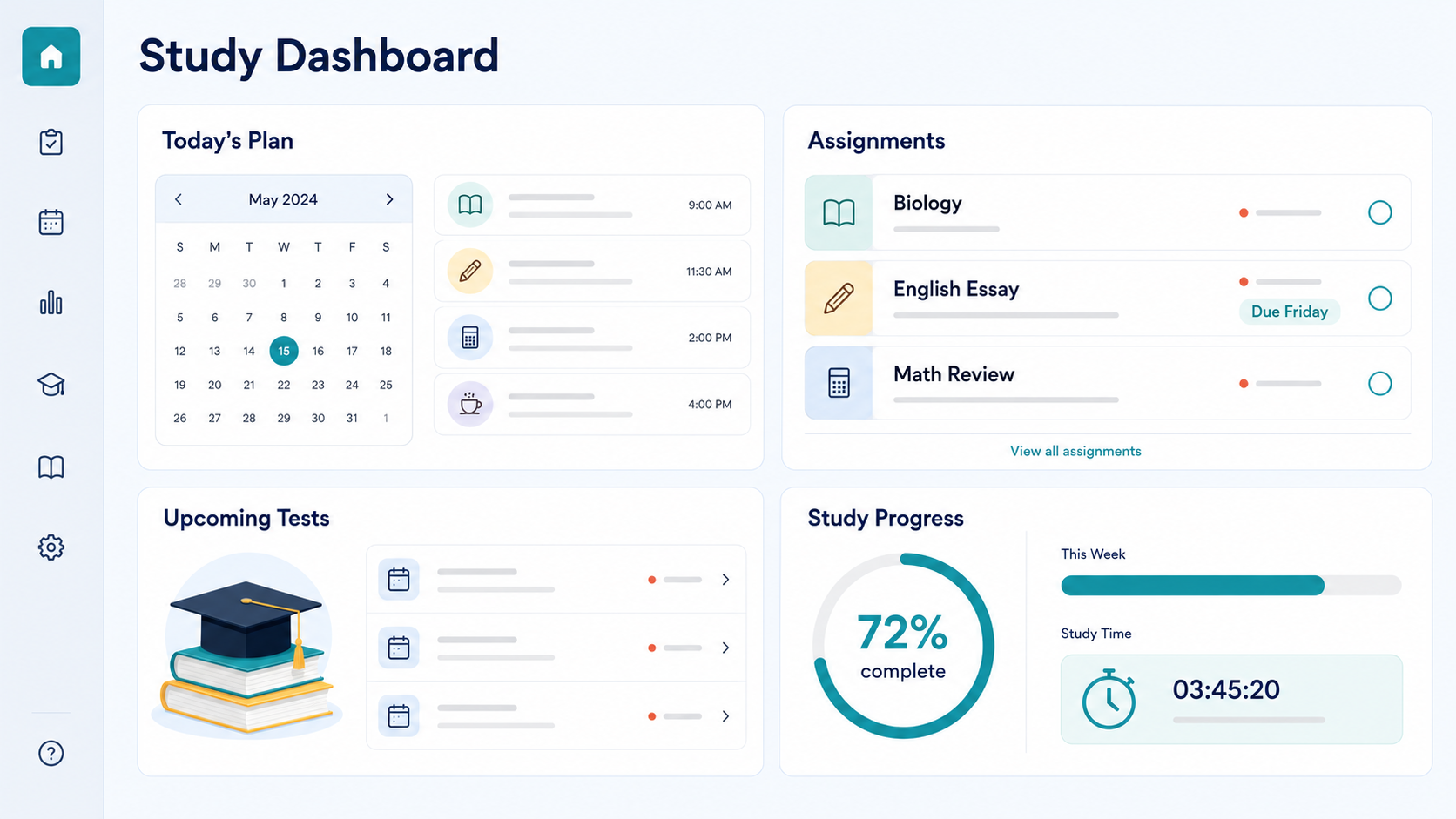
You might ask ChatGPT to create:
A Household Dashboard with upcoming bills, family appointments, home-maintenance tasks, repair projects, contractor estimates, grocery or meal plans, important documents, family responsibilities, and this week’s priorities.
A Health-Organization Dashboard to organize appointments, medications, symptoms, questions for your doctor, test results, insurance documents, movement or nutrition goals, and prescription refill dates. ChatGPT should never replace your doctor or make medical decisions for you. However, it may help you organize your own information and arrive at appointments better prepared.
A Personal Financial Dashboard covering income, recurring bills, due dates, savings goals, debt payments, household expenses, subscription renewals, and upcoming financial decisions. Always verify financial calculations and protect sensitive account information.
A Small-Business Dashboard tracking sales, expenses, orders, inventory, customer questions, marketing plans, content deadlines, projects, and monthly goals.
A Content-Creation Dashboard organizing article ideas, video topics, research, drafts, recording dates, publication schedules, images, social media content, completed projects, and performance information.
A Home-Renovation Dashboard keeping track of contractor estimates, project costs, payment schedules, warranties, photographs, repair priorities, important questions, decisions that still need to be made, and upcoming appointments.
A Travel Dashboard with reservations, confirmation numbers, transportation plans, daily itineraries, restaurant options, estimated expenses, accessibility information, weather updates, and backup plans.
This is where ChatGPT Work becomes relevant far beyond a traditional office.
“Work” does not only mean the job someone pays you to perform. It can also mean the work required to manage a household, care for a family, run a small business, organize your health, plan a move, or manage a complicated season of life.
ChatGPT Work Can Help You Decide What Matters
A good personal dashboard should not merely show you more information.
Most of us already have too much information.
The real value is helping you identify what deserves your attention.
For example, you could ask ChatGPT to create a morning briefing that includes your schedule, your three most important priorities, emails that require a response, upcoming deadlines, scheduling conflicts, new information related to an important project, decisions you need to make, and one task that can safely wait.
Your request might look like this:
“Review my calendar and the information I have approved from my connected apps. Give me a morning briefing with my schedule, three priorities, messages requiring a response, upcoming deadlines, possible conflicts, and anything I can safely postpone.”
That is very different from asking ChatGPT to create a basic to-do list.
ChatGPT Work can help pull together the context behind your tasks so you can see not only what is on your list, but what may be urgent, delayed, overlooked, or connected to something else.
Of course, ChatGPT will not always prioritize things exactly as you would. You should review its recommendations and correct it when necessary.
Over time, you can give it more specific instructions about what matters to you.
ChatGPT Work Can Use Your Connected Apps
ChatGPT Work becomes much more powerful when it can use information from services you already use.
OpenAI says ChatGPT can connect to tools and workflows through apps. These connections may allow ChatGPT to find relevant information in services such as email, calendars, messaging platforms, cloud storage, and other business or productivity tools.
For example, instead of manually copying information from several places, you may be able to ask ChatGPT to find emails awaiting your response, review your calendar for scheduling conflicts, locate the newest version of a file, gather recent messages related to a project, compare information from several documents, create a weekly summary from your calendar, messages, and files, or draft email replies and leave them unsent for your review.
The words “leave them unsent” are important.
ChatGPT can help prepare the work while you maintain control over whether anything is actually sent, shared, changed, or published.
Connected tools require the appropriate app and authorization. Availability may depend on your plan, device, account, organization, and the policies of the service you are connecting.
You also decide which connections to approve. ChatGPT should not automatically have access to your entire digital life.
ChatGPT Work Can Create Files You Can Download and Use
ChatGPT has long been able to provide text that users could copy into another program.
ChatGPT Work goes further by creating complete files.
You might ask it to turn rough notes into a formatted Word document, create a spreadsheet with formulas and charts, build a presentation with slides and speaker notes, convert research into a polished PDF report, create a project plan with owners and deadlines, organize survey responses and summarize common themes, compare several options in a formatted table, or turn data into a visual report.
For example:
“Use my notes and the attached research to create a 10-slide presentation for beginners. Use plain language, include speaker notes, and provide it as a PowerPoint file I can review.”
ChatGPT can create the presentation rather than merely describing what should appear on each slide.
You should still inspect the finished file carefully. Check the wording, facts, formatting, calculations, and images before sharing it.
A polished appearance does not guarantee that everything inside is correct.
ChatGPT Work Can Explain Its Plan Before Starting
For complicated or important assignments, you may not want ChatGPT to begin working immediately.
You may want to know how it intends to approach the project.
ChatGPT Work includes a Plan mode that can gather context, ask questions, and prepare a step-by-step approach before beginning. You can then review the plan, request changes, or approve it. OpenAI’s ChatGPT Work overview
Suppose you upload years of household financial information and ask ChatGPT to create a dashboard. Before it begins, you might want it to explain which files it plans to use, what information it will extract, how it will categorize the expenses, which calculations it will perform, what the dashboard will display, whether any information appears to be missing, and what assumptions it would need to make.
You can correct the plan before ChatGPT spends time creating the wrong thing.
This is especially helpful when the assignment involves many files, you have a specific result in mind, mistakes would be difficult to correct later, ChatGPT needs to make choices about organization or format, or the assignment involves sensitive or important information.
You Can Redirect ChatGPT While It Works
Delegating a project does not mean surrendering control of it.
You can review ChatGPT’s progress and provide additional direction.
You might say:
- “Stop. Do not include that file.”
- “Please make the dashboard easier to read.”
- “Separate personal and business expenses.”
- “Do not send any emails. Draft them only.”
- “Use a warmer tone in the presentation.”
- “Add a section showing unresolved questions.”
- “Remove that information before creating the final report.”
- “Show me the revised plan before continuing.”
ChatGPT may also pause and ask for your judgment when it encounters a decision it should not make on its own.
The best way to think about this is not “ChatGPT takes over.”
It is:
ChatGPT does the work while you provide the direction, boundaries, corrections, and final approval.
ChatGPT Work Can Keep Working on a Schedule
Some assignments need to happen more than once.
ChatGPT Work can support one-time and recurring scheduled tasks. It can also monitor for changes and notify you when something meaningful happens.
For example, you might ask ChatGPT to prepare a morning briefing every weekday, create a weekly summary of upcoming appointments, remind you about important deadlines, check for meaningful changes related to a topic, prepare a weekly project update, review new information added to a tracker, produce a monthly household report, or watch for an important update and notify you if it occurs.
You do not necessarily have to keep ChatGPT open while scheduled work runs.
Instead of remembering to repeat the same prompt every Monday, you may be able to establish the assignment once and have ChatGPT perform it on the schedule you choose.
You can view and manage your scheduled tasks on the Scheduled page in the ChatGPT sidebar on web or mobile. From there you can create a new task, edit or pause existing ones, and choose when each should run. Availability and limits may vary by plan. OpenAI’s Scheduled Tasks guide
ChatGPT Work Can Divide a Big Project Into Smaller Steps
Some projects contain several parts that can be completed separately.
For those projects, ChatGPT Work can break the assignment into smaller connected steps and work through them in order.
For example, imagine that you ask ChatGPT to compare three vacation destinations. It might research accommodations first. Then investigate activities and accessibility. Then compare transportation and estimated costs. And finally combine the findings into one recommendation.
You do not have to supervise each step individually. You give ChatGPT the larger assignment and ask it to divide the work when that would be helpful.
You might say:
“Research the destinations, compare the costs, and examine accessibility. Then combine the findings into one clear recommendation.”
Dividing a project this way is not necessary for every task. It takes more time and uses more of your available ChatGPT allowance.
For most everyday assignments, one straight pass through the project will be enough.
You Do Not Need to Know How to Code
Some of the technology behind ChatGPT Work is related to tools originally associated with coding and software development.
That may make the feature sound more technical than it is.
But you do not need to know how to write computer code to ask ChatGPT to organize your files, create a spreadsheet, build a personal dashboard, design a project tracker, make a presentation, prepare a report, create a website, research a purchase, compare documents, or build a household-planning tool.
You can describe what you want in ordinary language.
For example:
“I need one place to keep track of my bills, appointments, home repairs, and important family responsibilities. Please create something simple and attractive that I can update without technical knowledge.”
ChatGPT may use code behind the scenes to build the tool, but you do not have to write the code yourself.
Your job is to explain what you need, answer questions, review the result, and request changes.
Give ChatGPT the Assignment, Not Just the Next Prompt
Many people have learned to use ChatGPT one small prompt at a time. First, they ask for ideas. Then they ask for an outline. Then they ask for a draft. Then they ask ChatGPT to format the draft. Finally, they move the information into another program themselves.
ChatGPT Work can reduce some of that back-and-forth.
Instead of directing every individual step, you can describe the completed result:
“Use these notes and research files to create a complete beginner’s guide. Organize it into clear sections, verify current facts, add a comparison table, and create a polished document I can review.”
ChatGPT can develop the approach, complete the connected steps, and return with the deliverable.
(If you’d like a simple framework for writing clearer prompts in general — not only for Work assignments — my TEA formula for better answers works with any AI tool.)
A strong ChatGPT Work request usually includes four things:
- The goal: What are you trying to accomplish?
- The context: What information or files should ChatGPT use?
- The deliverable: What should ChatGPT create?
- The boundaries: What should it not do without your approval?
For example:
“I need to choose between these three home-repair proposals. Use the attached estimates and inspection report. Create a comparison spreadsheet and a one-page summary of the major differences, missing information, and questions I should ask. Do not recommend a contractor until I review your comparison.”
That is an assignment — not merely a question.
Is ChatGPT Work Safe?
ChatGPT Work can handle more information and complete more complicated assignments. That means users need to be thoughtful about what they provide and what they authorize it to do.
Before connecting an app or uploading a file, ask: Does ChatGPT need this information? Does the file contain sensitive details that should be removed? What information will the connected app allow ChatGPT to access? Is ChatGPT only reading information, or can it also take action? Could the finished dashboard or document expose private information? Will I have an opportunity to review the work before anything is sent or changed?
Use these basic precautions:
- Do not share passwords.
- Remove Social Security numbers when they are unnecessary.
- Remove full bank and credit-card numbers.
- Avoid uploading confidential information you are not authorized to share.
- Review connected apps and permissions.
- Give ChatGPT only the access needed for the assignment.
- Ask ChatGPT to draft messages without sending them.
- Confirm before allowing purchases, deletions, publications, or account changes.
- Check facts, calculations, dates, and conclusions.
- Inspect every file before sharing or publishing it.
- Use additional caution with medical, legal, financial, employment, and insurance matters.
A personal dashboard that contains your calendar, email, financial information, health information, or family responsibilities should be treated as private.
Do not share the dashboard until you know exactly what information appears in it.
ChatGPT Work Can Still Make Mistakes
ChatGPT Work does not eliminate hallucinations. It may still misunderstand your instructions, overlook information in a file, put something in the wrong category, use an unreliable online source, make an incorrect calculation, misidentify what is urgent, create a polished document containing inaccurate information, or claim something is complete when it still needs work.
This is especially important because the finished results can look impressive.
A beautiful dashboard can contain incorrect numbers. A professional presentation can include an unsupported claim. A well-formatted comparison can overlook an important exclusion. A convincing morning briefing can mistakenly classify an urgent email as unimportant.
Never confuse “ChatGPT completed the assignment” with “the assignment is guaranteed to be correct.”
You remain responsible for reviewing the result.
Who Can Use ChatGPT Work?
According to OpenAI, ChatGPT Work is available on desktop across all plans. It is also available on web and mobile for Plus, Pro, Business, Enterprise, and Edu plans, although some web and mobile features may still be rolling out. OpenAI’s current ChatGPT Work availability
The exact features you see can depend on your ChatGPT plan, whether you are using the web, mobile, or desktop version, your operating system, your account and rollout status, the connected apps you have installed, which outside services you have connected, your organization’s settings or restrictions, the permissions you have granted, and your available usage limits.
This means two people may open ChatGPT Work and see different options.
If a feature described in this article does not appear in your account, that does not necessarily mean you are overlooking it.
Check that your ChatGPT app is current, try the desktop or web version, and review the features included with your plan.
Should Beginners Try ChatGPT Work?
Yes — but begin with a manageable, low-risk assignment.
Your first ChatGPT Work project should not be something that could cause serious financial, medical, legal, or professional harm if the information is wrong.
Start with something you understand well enough to check.
You might create a vacation dashboard, organize a personal project, build a household-maintenance tracker, turn your notes into a presentation, compare several ordinary purchases, create a meal-planning tool, organize hobby or content ideas, build a simple family calendar, turn a collection of recipes into a formatted booklet, or create a tracker for an upcoming celebration.
For your first project: explain the goal, provide only the necessary information, describe the finished result you want, set clear boundaries, ask ChatGPT to show you its plan, review the work carefully, and request corrections before accepting the final version.
Once you understand how ChatGPT Work behaves, you can gradually use it for more involved assignments.
ChatGPT Is Becoming More Than a Chatbot
This may be one of the most important changes in ChatGPT since it was introduced.
The original ChatGPT helped people generate and understand information.
ChatGPT Work can help people turn that information into something useful.
It can take scattered files and organize them.
It can take an idea and turn it into a plan.
It can take rough notes and turn them into a polished presentation.
It can take information spread across your email, calendar, files, and task list and turn it into a personal command center that shows you what deserves your attention.
It can create an assignment once — or continue working on a schedule.
And it can help manage not only the work you are paid to do, but also the often-invisible work of running a household, caring for people, managing your health, building a business, pursuing a goal, or navigating a complicated season of life.
If you have been curious about Claude Cowork but reluctant to leave the ChatGPT environment you already know, ChatGPT Work may be exactly what you have been waiting for.
You do not have to become a programmer.
You do not have to understand AI agents before you begin.
You do not have to reorganize your entire life on the first day.
Start by asking yourself one simple question:
What unfinished project or scattered information in my life would be easier to manage if everything important were organized in one place?
That may be the perfect first assignment for ChatGPT Work.
💡 Michelle’s Tip: Don’t try to invent a project for your first ChatGPT Work assignment. Look at what’s already scattered on your kitchen counter, your desk, or your phone right now. That pile IS your first project. Ask ChatGPT to help you put it in one place.
Continue Learning with WhatIsChatGPT.org
If this article was helpful, grab the free Quick-Start Guide — a plain-English walkthrough delivered right to your inbox.
You may also enjoy How to Use ChatGPT and How to Get Better Answers From ChatGPT.
Know Someone Overwhelmed by AI?
Share my Free Quick-Start Guide with them. It’s the gentle first step that helps someone finally stop feeling behind.
Next in this Section
- ChatGPT vs. Claude: Why I Use Both — a direct comparison of ChatGPT and Claude Cowork
- How to Get Better Answers From ChatGPT — the TEA formula for stronger prompts
- How to Use ChatGPT — the step-by-step tutorial for total beginners